Pages

Monday, February 3, 2014

Death of Infopath Forms

Infopath forms has been both blessing and pain at the same time since SharePoint 2007. With the growth of new web technologies, we always wonder is there a place for infopath forms in SharePoint universe. The inherent limitations and clumsiness of infopath forms has finally come to an end. Yesterday the office team has clearly elaborated on the course of infopath form going forward.

InfoPath, though a useful tool for customization on SharePoint it always lacked functionality which prevented it becoming mainstream. So the verdict is finally out and it is death of infopath forms and there will not be any future releases of infopath forms beyond 2013.

Let us hope that Microsoft comes up with really cool forms interface and development environment soon.

Happy coding and RIP Infopath we will definitely miss you if not a lot may be little.

PS. is there any acquisition by Microsoft (K2 or Nintex).

Monday, January 27, 2014

Get SharePoint WSP from Central Admin

SharePoint solution are most common way of deploying farm solutions in enterprise. There are times when we need to download the solution from central admin for variety of reason. Recently one of the client had a issue where they had multiple version of a DLL and they wanted to know which version of DLL is deployed with the SharePoint Solution. If you do not have a document or Change control process it is difficult to track back. What is a option now because we do not have any documentation on which version was deployed?

Only way out is to get eh WSP that was deployed and extract the WSP to get the DLL and reflect the DLL to find the solution.So far so good but how to get the WSP that was deployed to SharePoint. We cannot download the WSP from central admin through UI. How else we could do this? This is where the powershell panacea of all things SharePoint comes into play.

Powershell command exists to achieve this and we can use this to download the solution from Central Admin. 


$farm = Get-SPFarm  // Get Farm
$file = $farm.Solutions.Item("test.wsp").SolutionFile  // Get SOlution File
$file.SaveAs("c:\test\test.wsp") //Save solution file to Local directory
 
This is how easy to achieve the result using powershell. Make sure you are running this
command with admin privileges. 
 
There is no STSADM equivalent for this solution and I should thank my colleague for
introducing me to this powershell command.


Thursday, November 14, 2013

Send Email to Multiple Person or Group in SPD Workflow

SharePoint 2013 is forging ahead with great force and especially office 365 and SharePoint online is quickly becoming a new mantra for SharePoint implementation. SharePoint workflow is improved significantly in 2013 and there are so many activities that are deprecated especially the activities that we got used to in 2010 for Document Sets and impersonation etc.

Recently I had to create a SharePoint designer workflow in SharePoint online. The workflow is to send notification to users on their tasks. The objective looks simple correct? Yes, the workflow is also simple and it is one step workflow, but the devil is in the detail. The workflow needs to send email based on Assigned To Field in the tasks lists. As all of us know AssignedTo field take both Groups and users. So in a sense the workflow needs to email a group of people or send email individually to all users specified in the Assigned To field.

So far so good but here is where i stumbled upon. I used the send email activity and I chose the return type as "Email; Semi colon Delimited" as shown below.


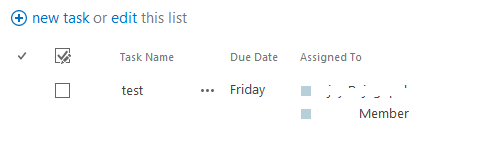
Then I specified 2 users in the assigned to field and ran the workflow.


I had a Log to History activity in the workflow and what I found email delimited with semi colon in the History but Workflow failed to send email. Below is the error message I got.


After breaking my head as I cannot use Correlation ID in the error message because I am in SharePoint online and only way available is to send email to Microsoft with correlationid and wait for an answer. I was not ready to to that so I decided to try different option and finally found what worked like a charm. To send email to Group or multiple user instead of using "Email Address;Semicolon delimited" use "Login Ids; Semicolon Delimited" When I used as shown in figure the workflow sent out email fine both for Groups and individual users.


The example i have here is with users but the same works for Groups and i checked. I will update the images later.


Note: This approach is not going to help to send personalized email by adding user name for which we have to use other approach like using web services to get current user.

Hope this helps someone. Leave your thoughts in comments.