SharePoint 2013 is out for sometime and there are many new features including Client Side Object Model (CSOM) and new services like Translation Service and APP management etc. I am going to share an interesting thing that I stumbled upon today while setting up some POC using SharePoint for Project Management. This is interesting and useful because it becomes handy for setting up business processes in SharePoint.
Today while setting up the site I happened to create a Task List and was going through all the fields. I noted a field type called "Related Items". We all would have seen "predecessor" field in SP2010 tasks list and "Related Issues" in SharePoint 2010 issues List. I now got curious to find out about this field because it looks new.

First, I clicked on the field in the List settings page to see information about the field. I did not field any information at all in the description. Next step is to check at the site columns. The field is not visible in site columns. This only means as we all know it is hidden. Now curiosity just shot up and really want to know why this field is hidden and what does this field has to offer and how is this field different from"Related Issues" or "Predecessor". One this is surely certain that this field is custom field type unlike other two fields which are lookup fields.

Now setting out to find out what this field has to offer what better way to find than by creating a task. So I created a new task but strangely enough I could not see the field in new form. This now becomes intriguing because if I am not seeing in New Form I am sure if I will see in Edit Form while editing the item or View Form. But I was in the mission of finding this out. So I decided to edit the item because as we all know we can have the property on the field "Show in New Form" to false but still show in edit form.
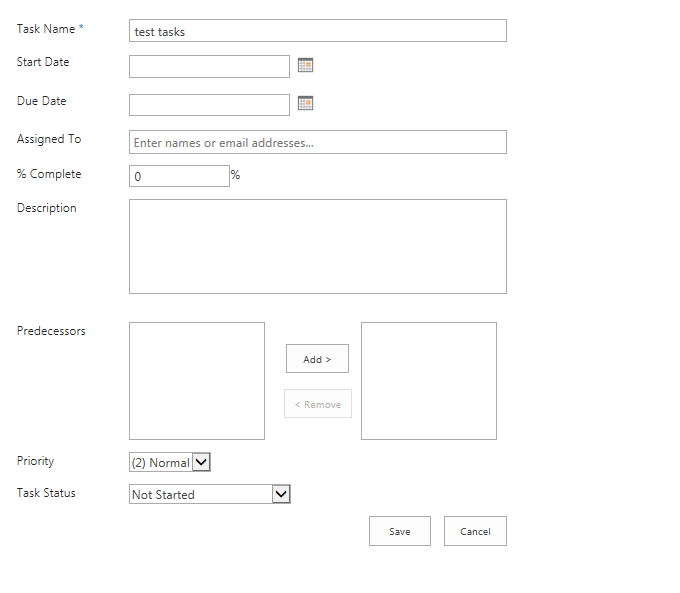
I was in the edit form and could not see the field. I was getting anxious because how I can fill the field if it not showing up in New and Edit Form.What is the use of the field that is hidden through out and what is SharePoint trying to achieve with this field? These were some of the question I had and decided to check the View Form.We all know that View form is readonly view of Edit Form, so I wasn't excepting anything but thought that it could be information only field that SharePoint auto populates.


With this thought I opened the View form and contrary to my impression i saw a link right across "related items" field. This is the first place I was able to see Related Items tied to an task item in the list. I went ahead and clicked the Link which brought up a Pop up which by default points to the site collection. Eureka. The "related Items" is allowing me to add items that are related to this tasks. I selected a document from document Library and clicked "OK" boom! the document is linked to the tasks. I was able to add multiple items at a time and even was able to upload a document to a library right there in the pop up. So if the document or the item is not available in SharePoint you will be able to add it and then link it all in one shot without having to close the pop up.This is huge.


Now why do I think this field is useful?
The field is a big step forward where in enterprise when some one is assigned to work on a tasks the person creating the tasks can add all these related items as reference for the other person to work on. For example the project manager can add all reference to all project items corresponding to a tasks as related item.The reference items can be independently managed and updated. Example Project Plan, Resource Availability.We can add reference to any thing that is in SharePoint. It could be an Issue, list item etc.
This to me is better than having as attachment because the references are independent of the tasks item. This is makes a true relational setup and easy to maintain single version of truth that is referenced.
Right now we will only be able to add items in the present site collection but if future if Microsoft allows us to add items stored externally or in different site collection which would makes this feature a jaw dropping feature in SharePoint until we unearth another hidden feature.
Hope you find this one useful and let me know your thoughts and suggestion in comments. I will be exploring SharePoint 2013 and until then happy SharePointing.
Today while setting up the site I happened to create a Task List and was going through all the fields. I noted a field type called "Related Items". We all would have seen "predecessor" field in SP2010 tasks list and "Related Issues" in SharePoint 2010 issues List. I now got curious to find out about this field because it looks new.
First, I clicked on the field in the List settings page to see information about the field. I did not field any information at all in the description. Next step is to check at the site columns. The field is not visible in site columns. This only means as we all know it is hidden. Now curiosity just shot up and really want to know why this field is hidden and what does this field has to offer and how is this field different from"Related Issues" or "Predecessor". One this is surely certain that this field is custom field type unlike other two fields which are lookup fields.
Now setting out to find out what this field has to offer what better way to find than by creating a task. So I created a new task but strangely enough I could not see the field in new form. This now becomes intriguing because if I am not seeing in New Form I am sure if I will see in Edit Form while editing the item or View Form. But I was in the mission of finding this out. So I decided to edit the item because as we all know we can have the property on the field "Show in New Form" to false but still show in edit form.
I was in the edit form and could not see the field. I was getting anxious because how I can fill the field if it not showing up in New and Edit Form.What is the use of the field that is hidden through out and what is SharePoint trying to achieve with this field? These were some of the question I had and decided to check the View Form.We all know that View form is readonly view of Edit Form, so I wasn't excepting anything but thought that it could be information only field that SharePoint auto populates.
With this thought I opened the View form and contrary to my impression i saw a link right across "related items" field. This is the first place I was able to see Related Items tied to an task item in the list. I went ahead and clicked the Link which brought up a Pop up which by default points to the site collection. Eureka. The "related Items" is allowing me to add items that are related to this tasks. I selected a document from document Library and clicked "OK" boom! the document is linked to the tasks. I was able to add multiple items at a time and even was able to upload a document to a library right there in the pop up. So if the document or the item is not available in SharePoint you will be able to add it and then link it all in one shot without having to close the pop up.This is huge.
Now why do I think this field is useful?
The field is a big step forward where in enterprise when some one is assigned to work on a tasks the person creating the tasks can add all these related items as reference for the other person to work on. For example the project manager can add all reference to all project items corresponding to a tasks as related item.The reference items can be independently managed and updated. Example Project Plan, Resource Availability.We can add reference to any thing that is in SharePoint. It could be an Issue, list item etc.
This to me is better than having as attachment because the references are independent of the tasks item. This is makes a true relational setup and easy to maintain single version of truth that is referenced.
Right now we will only be able to add items in the present site collection but if future if Microsoft allows us to add items stored externally or in different site collection which would makes this feature a jaw dropping feature in SharePoint until we unearth another hidden feature.
Hope you find this one useful and let me know your thoughts and suggestion in comments. I will be exploring SharePoint 2013 and until then happy SharePointing.
